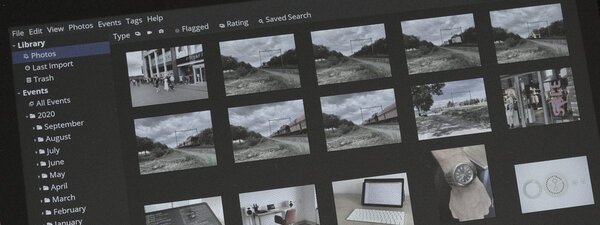
How to Export Photos from Apple Photos Without Losing Quality
Export your unmodified originals, batch rename by EXIF date, and convert HEIC to JPG.
Apple Photos makes it easy to store your pictures — and hard to get them out. Here's how to export your unmodified originals, rename them by date using EXIF data, and convert HEIC files to JPG. From Willem's complete guide to escaping Apple's photo ecosystem.
Select all your photos in Apple Photos and choose File → Export Unmodified Originals. This exports the original master files — not compressed copies, not thumbnails, but the actual photos your camera captured. Use sequential filenames with a prefix, which makes batch renaming easier in the next step.
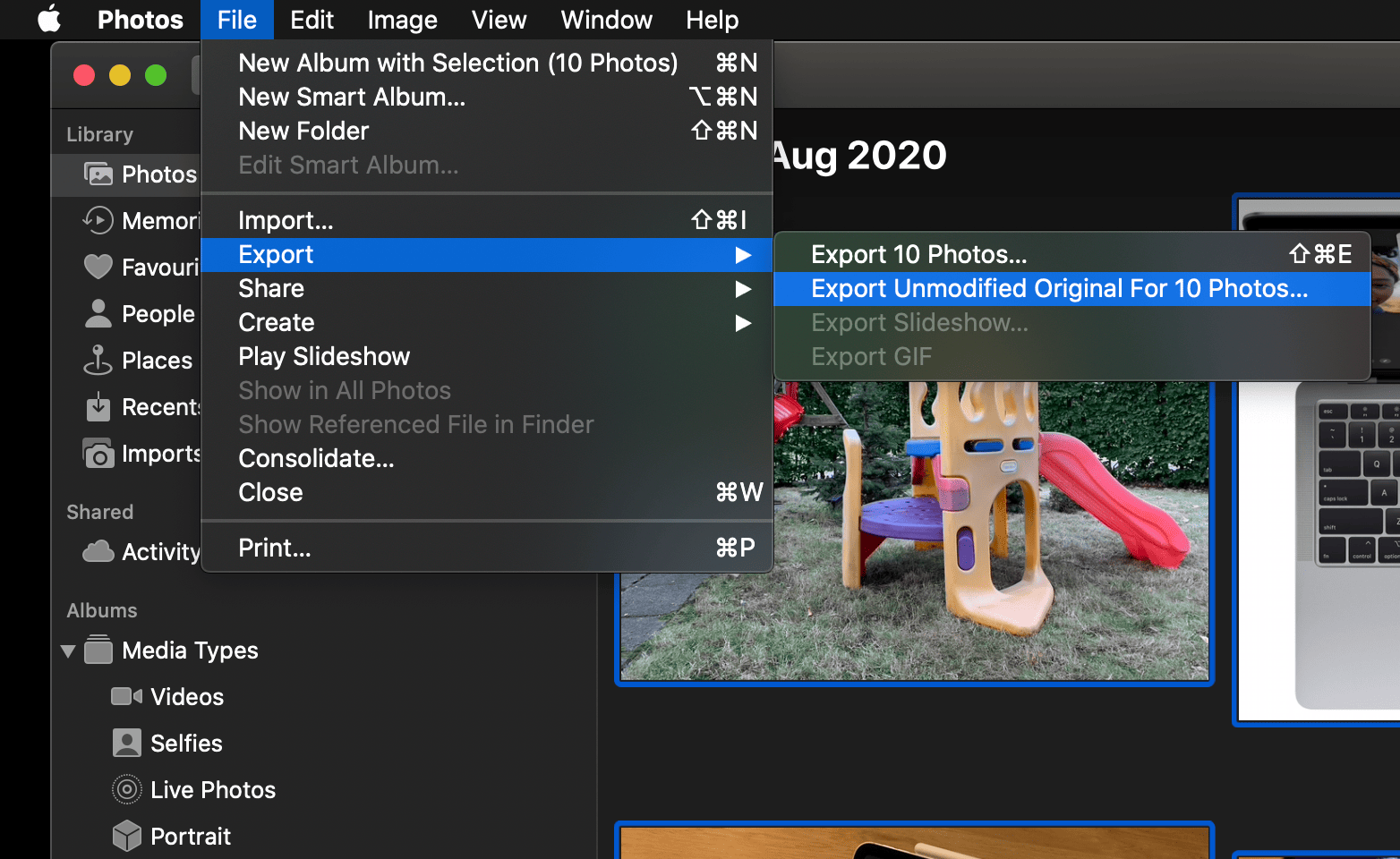
Once exported, use exiftool on Linux (or macOS) to rename all files by their creation date. The command exiftool -d '%Y%m%d-%H%M%%-03.c.%%e' '-filename<CreateDate' renames every photo to a YYYYMMDD-HHMM format — no more IMG_4523.jpg.
For HEIC files (the format modern iPhones use), convert to JPG using ImageMagick: mogrify -format jpg *.HEIC. This runs on any platform and preserves quality.
This snippet is from Willem's full guide to liberating your photo library from Apple's cloud — a step-by-step walkthrough covering 20 years of digital photos, from the first 0.8 megapixel camera to a self-managed library on a single SD card.