
Installing Linux on a Microsoft Surface Go
From creating a bootable USB to a working touch-friendly Linux tablet.
The Surface Go is a compact Windows tablet that makes an excellent Linux machine — if you know how to set it up. Here's the practical guide: creating a bootable USB, choosing the right distro, and getting touch input working properly.
The Surface Go's compact size, decent screen, and USB-C port make it a surprisingly good Linux tablet. Willem chose Debian GNU/Linux for stability and control.
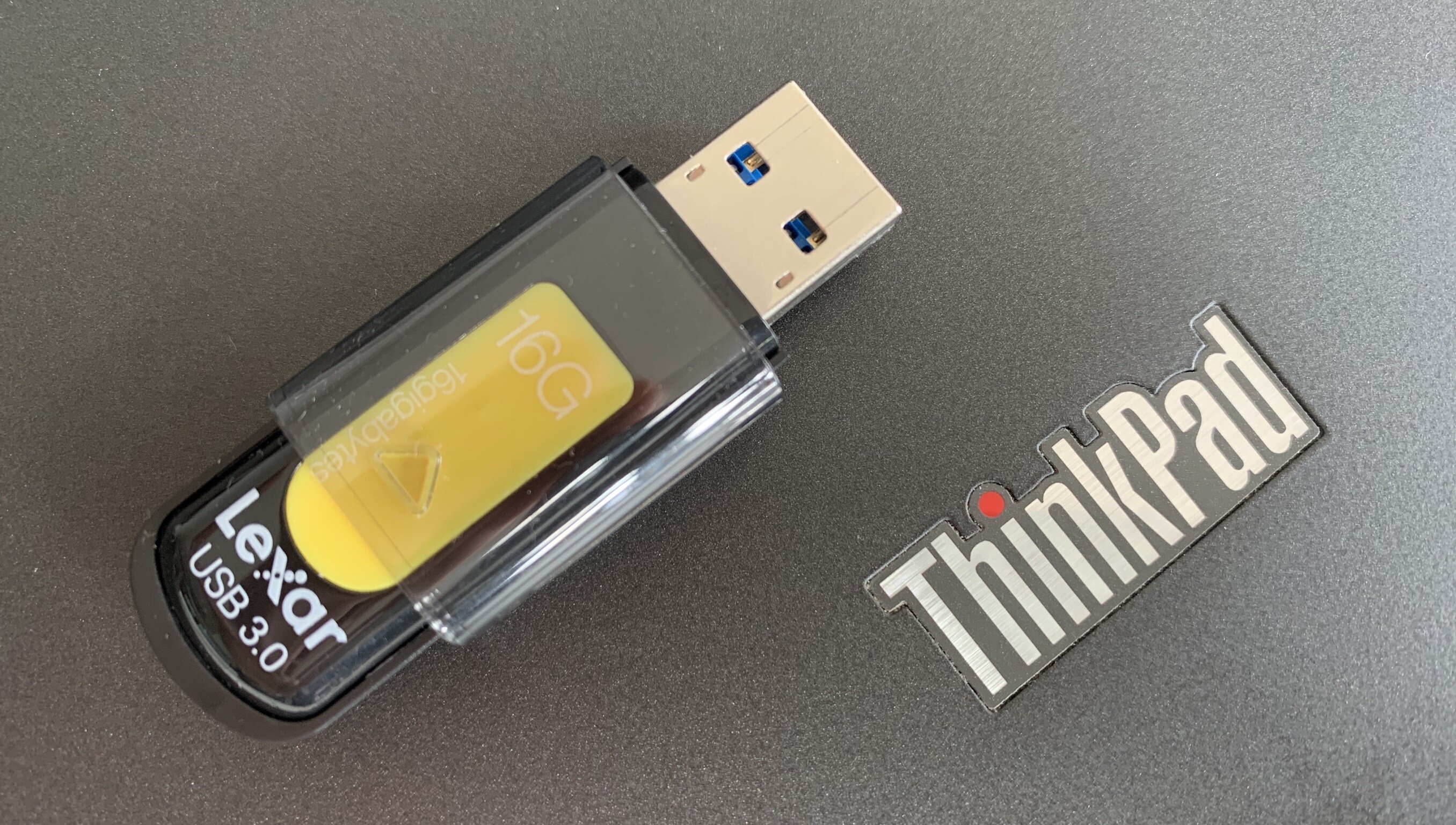
Creating the bootable USB: Download the Debian netinstall ISO and write it to a USB stick using dd or Etcher. Boot the Surface Go from USB by holding Volume Down during startup.
Touch input works out of the box on recent Linux kernels — the Surface Go's touchscreen is well-supported. The main challenge is choosing a window manager that's touch-friendly: Willem experimented with tiling window managers and custom launchers.
WiFi and firmware: The Surface Go's WiFi chip requires proprietary firmware. Install firmware-atheros from Debian's non-free repository.
From Willem's full series on building a tablet OS from scratch.